Tuta Mail Not Receiving Emails: How to Troubleshoot
Quick answer: Check folders, address spelling, filters, domain configuration, and sender-side errors. Start with the checks below and avoid changing security settings unless you understand the effect.
Problems with encrypted email can have several causes, including device configuration, service connectivity, account security requirements, or a feature that works differently from conventional email. The correct fix depends on the exact symptom. This guide explains a practical way to narrow down the cause without risking account access or message privacy.
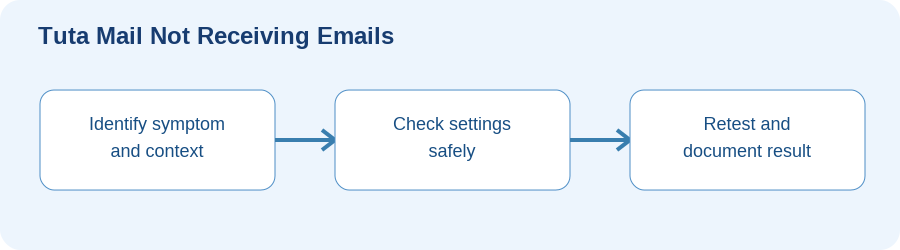
What to check before you start
Have the affected device available, note when the problem started, and identify whether it occurs in a web browser, desktop application, or mobile application. If an error appears, copy its wording without including personal account details. For login or recovery problems, keep any recovery code private.
Step-by-step troubleshooting
- Identify the exact symptom. Write down the message, time of failure, and whether the problem affects one device or all devices.
- Check the current service and connection. Confirm a reliable internet connection. If several devices fail at the same time, check for a broader service issue before changing settings.
- Trace one test message. Use a known sender and recipient, inspect the correct folders, and note any bounce or delivery error. For a custom domain, also review DNS configuration.
- Try one controlled change at a time. After each change, retry the same action and record whether the symptom changes. Avoid making several changes at once.
- Review security and privacy implications. Do not share your password, two-factor code, or recovery code with anyone claiming to provide support.
- Confirm the outcome. Repeat the original task and confirm that it works consistently. If it still fails, document the exact error for an authorized support channel.
How to isolate the cause
Try the same operation in a second supported environment only when it is safe to do so. If the issue happens in one browser but not another, investigate local browser data or extensions. If it affects all devices, focus on account status, connectivity, or the service itself. Do not repeatedly attempt failed logins if doing so could trigger additional security restrictions.
Important account safety notes
Tuta uses privacy-focused account protections. Recovery options may be intentionally limited. Never give a third party your password, recovery code, one-time authentication code, or access to your device. Use the verified provider channels for account-specific decisions, billing disputes, or security incidents.
How to verify the problem is resolved
Return to the exact action that failed, perform it once, and confirm the expected result. For email-delivery problems, check both sender and recipient outcomes. For billing issues, confirm the account plan and transaction status rather than relying on a screen message alone.
Frequently asked questions
Why does this problem happen?
The cause can vary by device, account configuration, software version, and network conditions. Start by collecting the exact symptom before selecting a fix.
Will reinstalling the app fix it?
Reinstallation can address some local application problems, but it will not correct server-side, billing, or account recovery issues. Ensure you can sign in and have any required recovery information before removing an app.
Should I share my recovery code with support?
No. Keep recovery codes and authentication secrets private. A legitimate troubleshooting guide does not need them.